
App Store Upload Guide
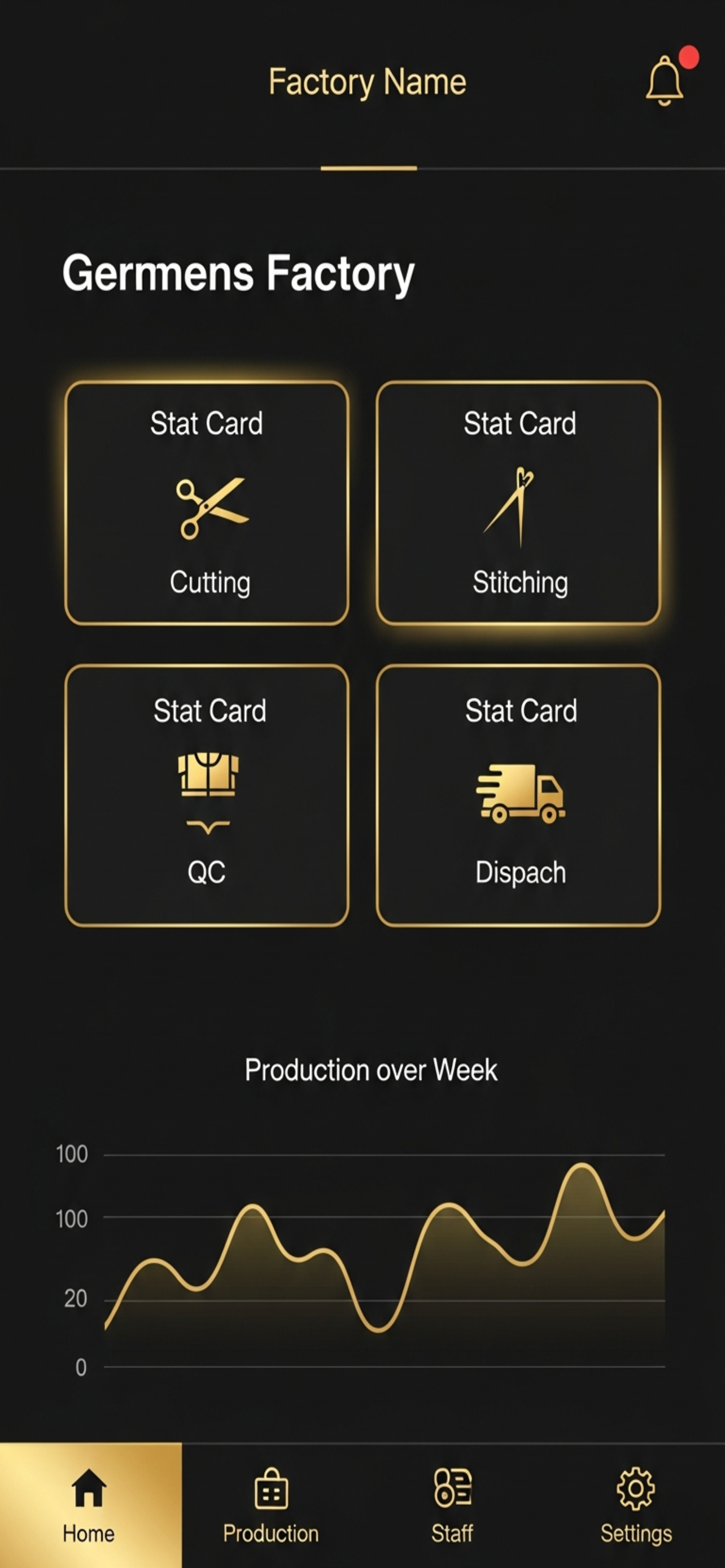
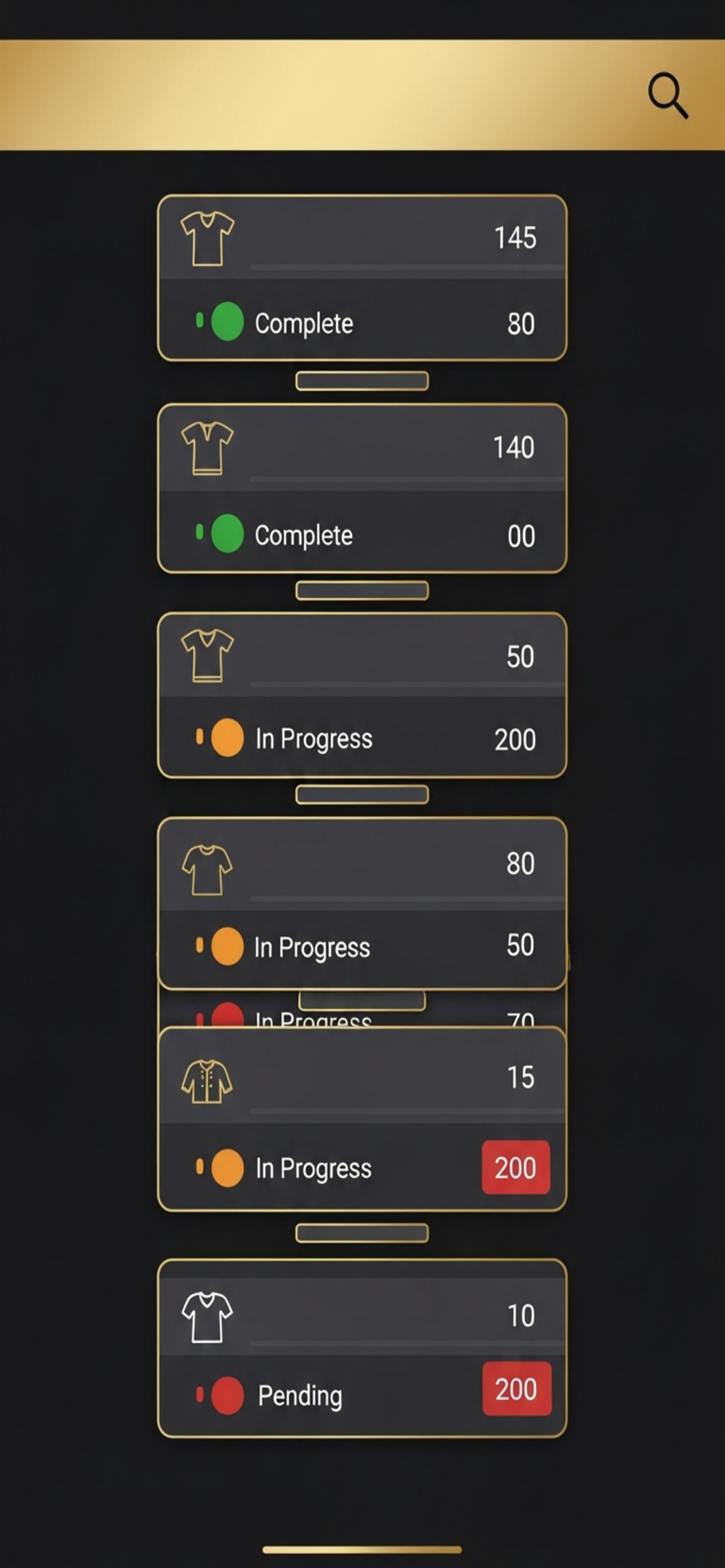
- Click Download Asset below each screenshot to save to your device
- Open App Store Connect and navigate to your app listing
- Under "iPhone 6.7" Display" section, click "Choose File"
- Upload each screenshot in sequence (Login, Dashboard, Production)
- Click "Save" and then "Add for Review" to submit